

Is your Windows 10 computer slow and short on disk space? A lot of temporary files are usually the main problem.
These are junk files that your system doesn’t automatically remove, causing them to quietly accumulate and drag down your performance.
But don’t worry! I’m going to show you the quickest, safest, and most effective methods on how to clear temp files in Windows 10 without losing anything important.
By following this Windows 10 system cleanup guide, you can easily delete temporary files and remove the system cache that is clogging your hard drive.
Now, follow these simple steps to clear junk files in Windows 10 and make your computer run faster right away!
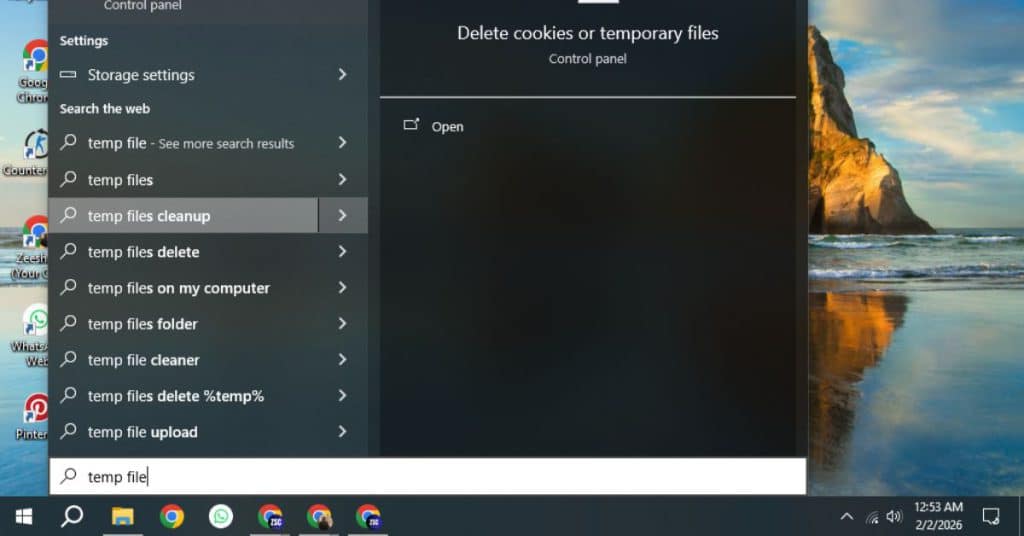
Table of contents
- Method 1: The Easiest Way: Using Windows Settings
- Method 2: The Classic Way: Using Disk Cleanup Tool
- Method 3: The Power-User Way: Manual Deletion via Run
- 4. Pro-Tip: Schedule Cleaning with Storage Sense
- Why Temp Files Slow Down Your PC (The Core Problem)
- Conclusion:
- Final Words From Me
- Frequently Asked Questions
Method 1: The Easiest Way: Using Windows Settings
Most people will find this method to be the best because it is easy, safe, and shows you exactly what you are deleting.
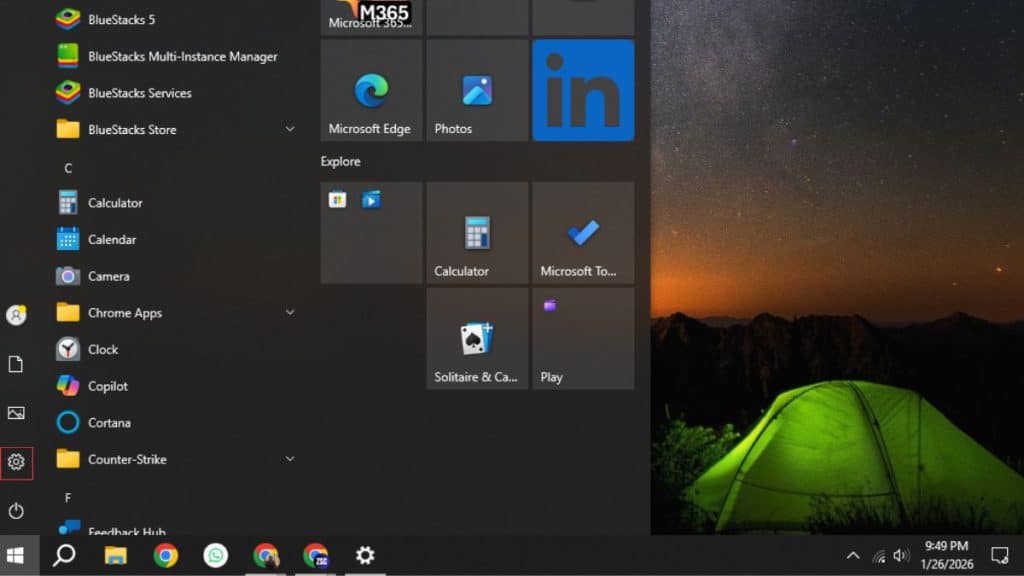
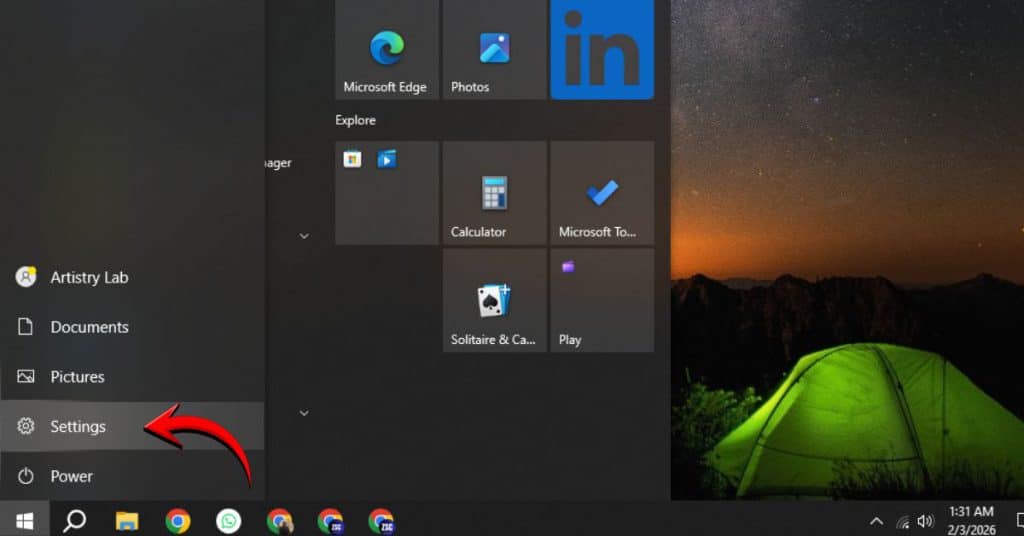
1. Click the gear icon in the Windows Start Menu to open Settings.
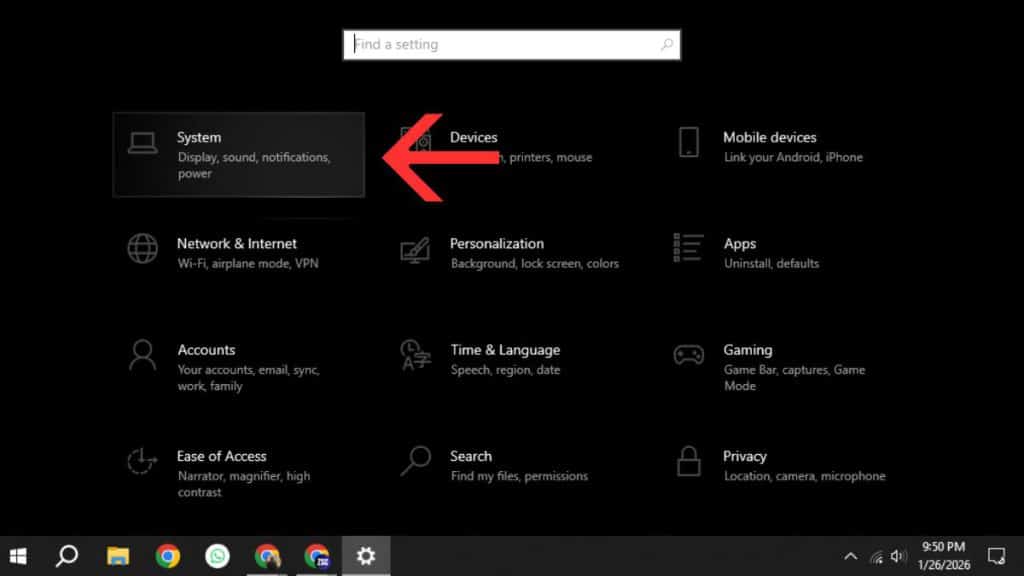
2. Choose System.
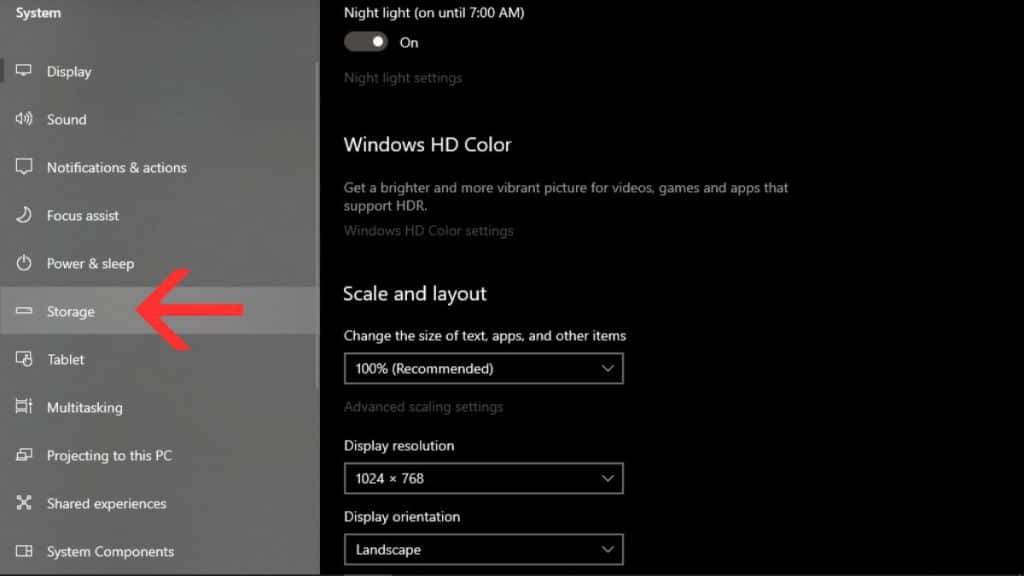
3. Choose Storage from the menu on the left.
4. Please wait while Windows figures out how much space you have used. You will see a place for temporary files. Click on it.
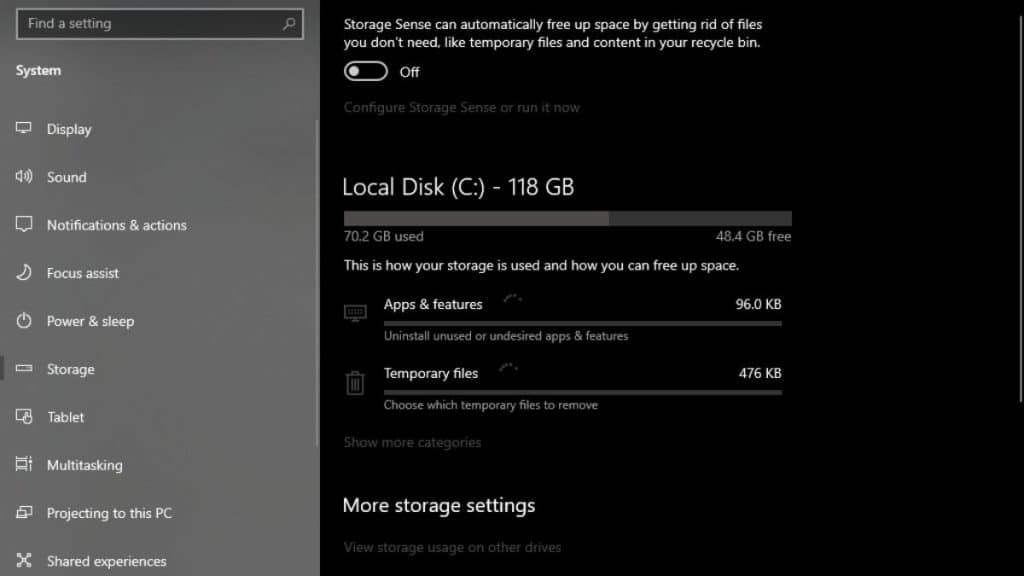
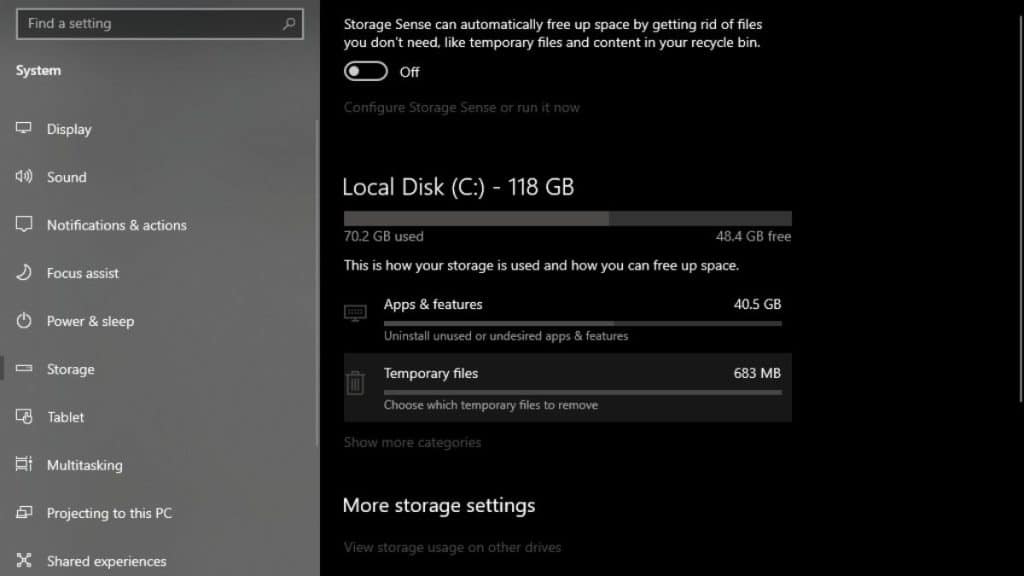
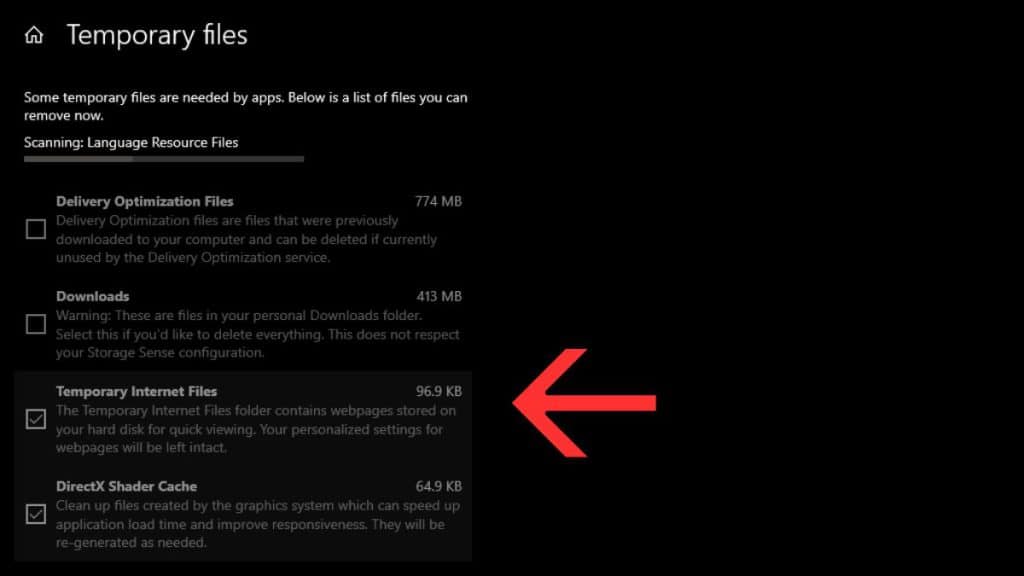
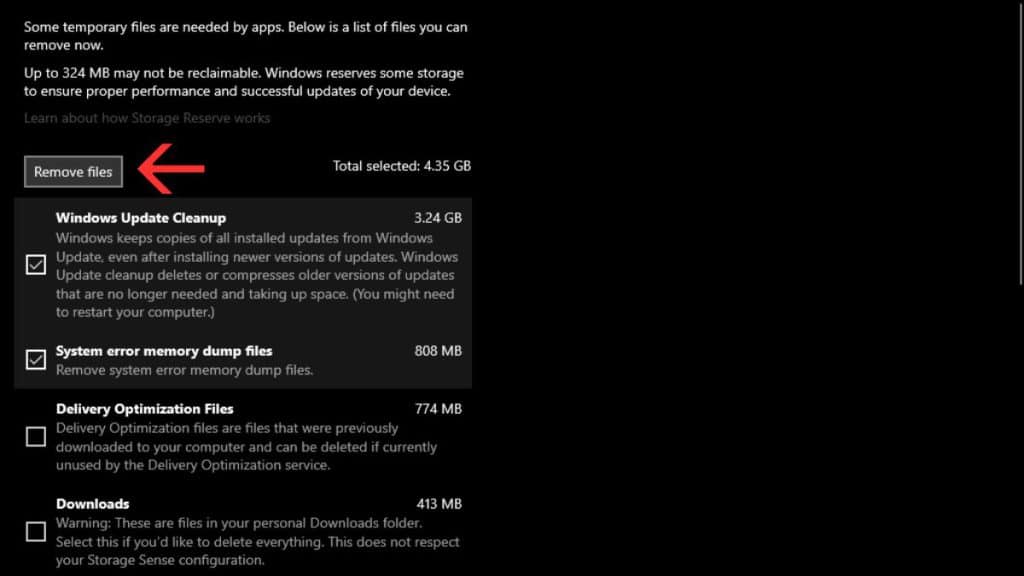
5. Now, Windows will look through all the junk and list it. Carefully look over the list. Unless you are sure you don’t need those files, I suggest leaving the “Downloads” folder unchecked.
6. Check the boxes next to the files you want to get rid of, such as Temporary Internet Files, Windows Update Cleanup, and Delivery Optimization Files.
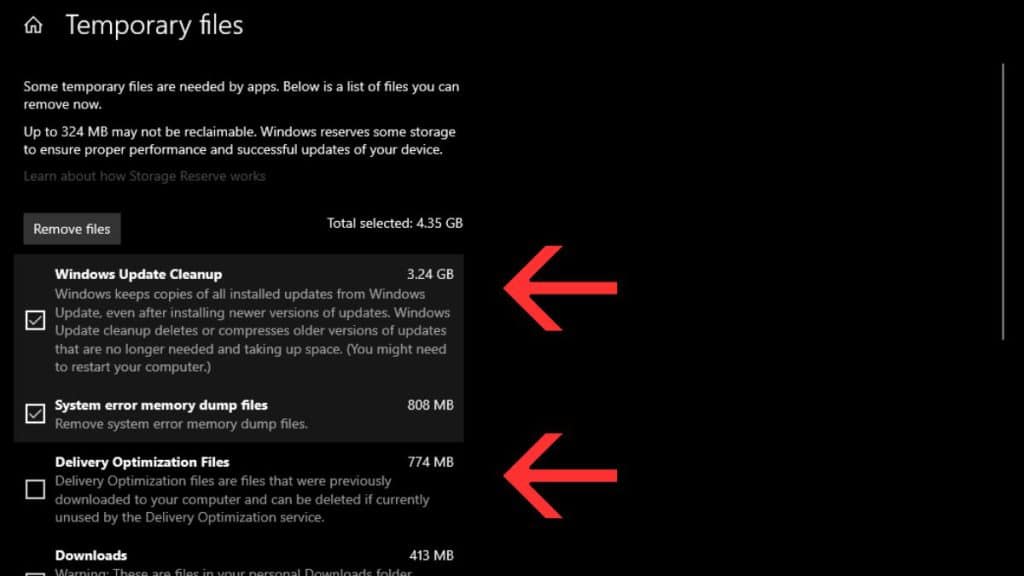
7. At the top, click the button that says “Remove Files.” Finished!
Method 2: The Classic Way: Using Disk Cleanup Tool
The old-school Disk Cleanup utility is still very powerful, especially if you need to clear system-level files like previous Windows installation folders.
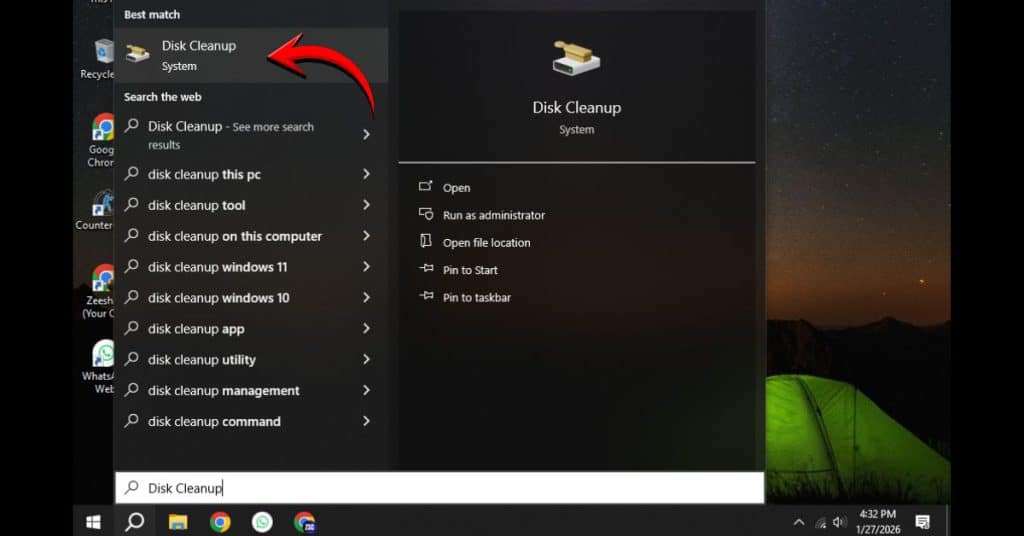
1. Type “Disk Cleanup” into the Windows Search bar and open the app.
2. Select your main Windows drive (usually C:) and click OK.
3. A small box will appear. To get the best results, click the “Clean up system files” button.
4. The utility will rescan. When the new list appears, check the boxes for files like Temporary files and Temporary Internet Files.
5. Click OK and then Delete Files to confirm.
Method 3: The Power-User Way: Manual Deletion via Run
This method is for power users who want to manually delete the content of the ‘Temp’ folders. But a quick warning: only delete the contents of the folder, not the folder itself.
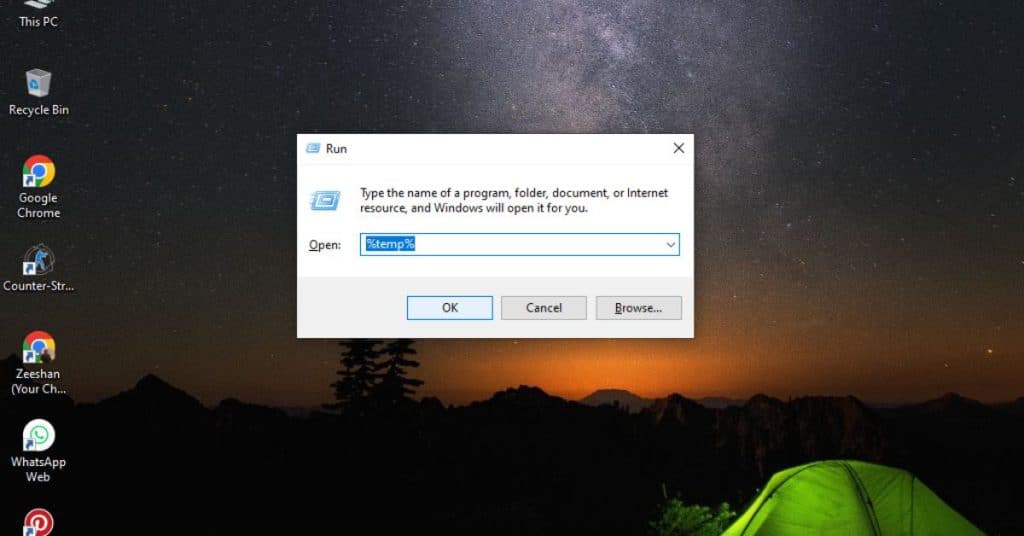
1. Press the Windows Key + R to open the Run dialog box.
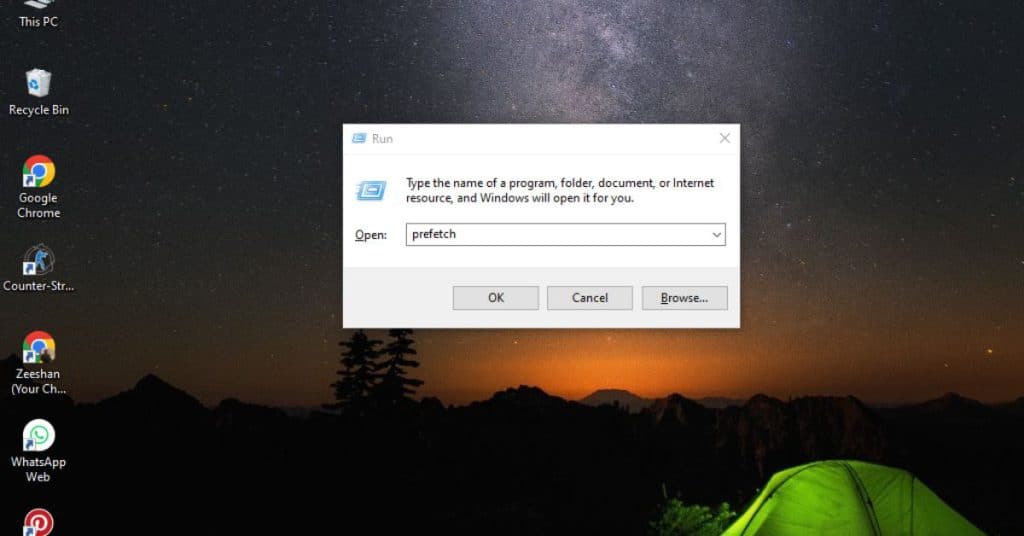
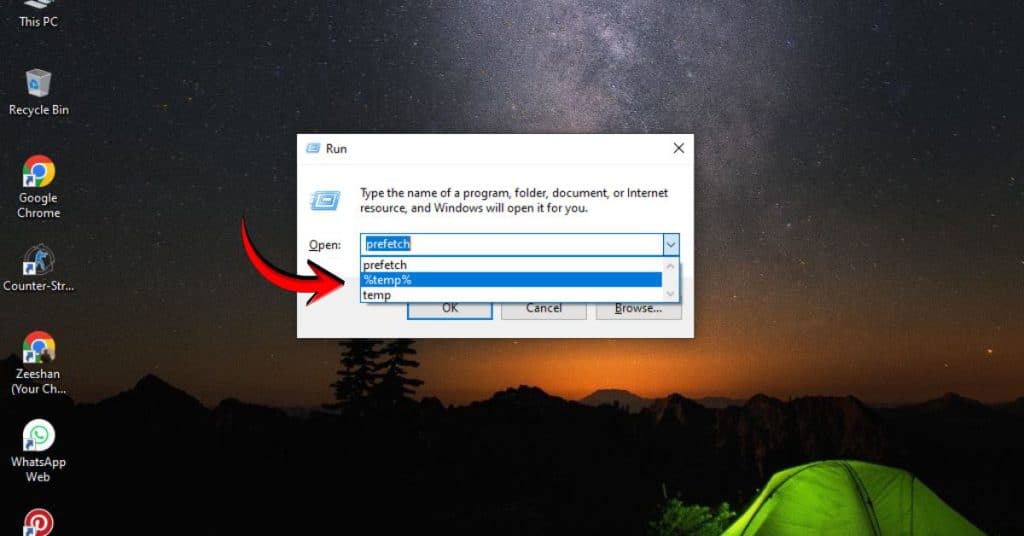
2. Type %temp% and press Enter. This opens your user’s temporary folder.
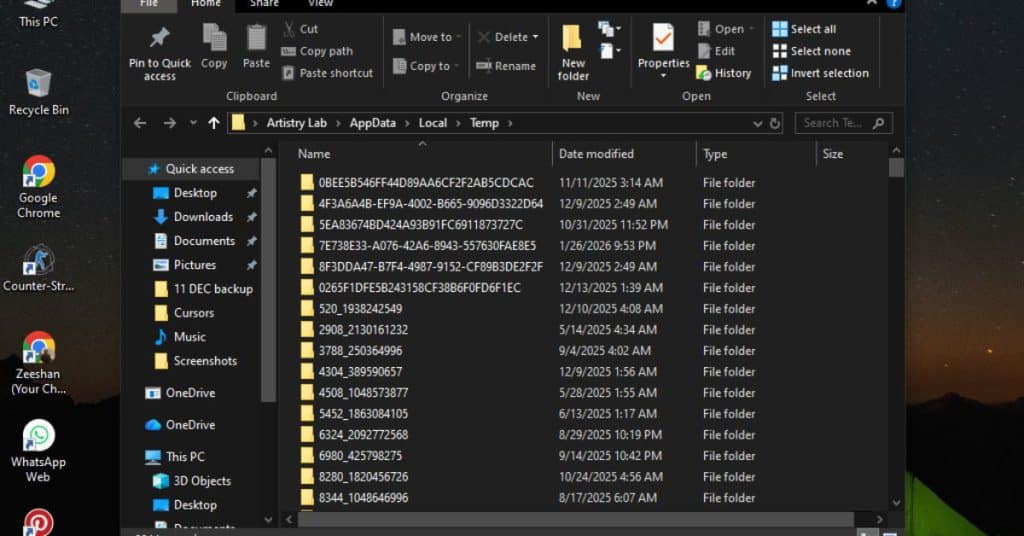
3. Press CTRL + A to select all files and folders inside.
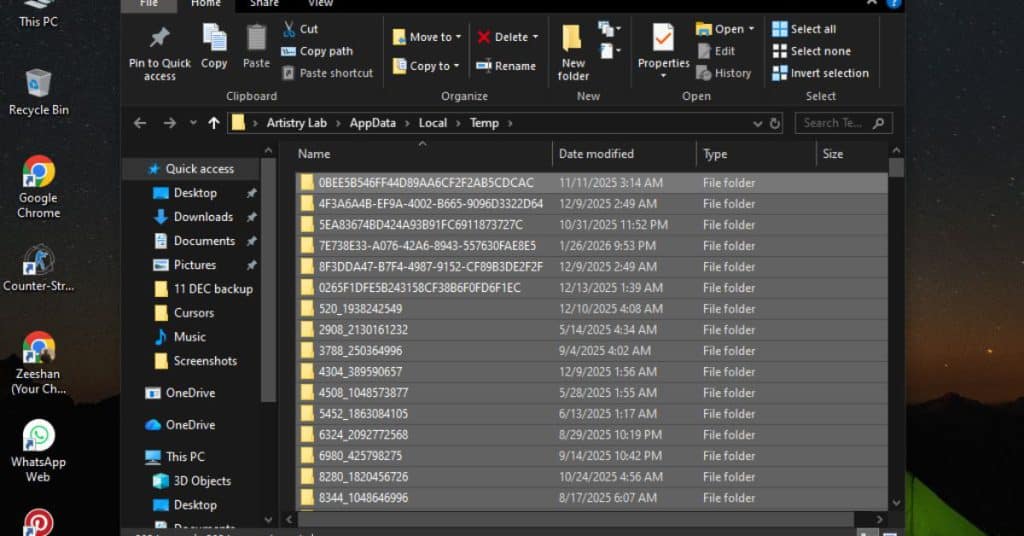
4. Press the Delete key.
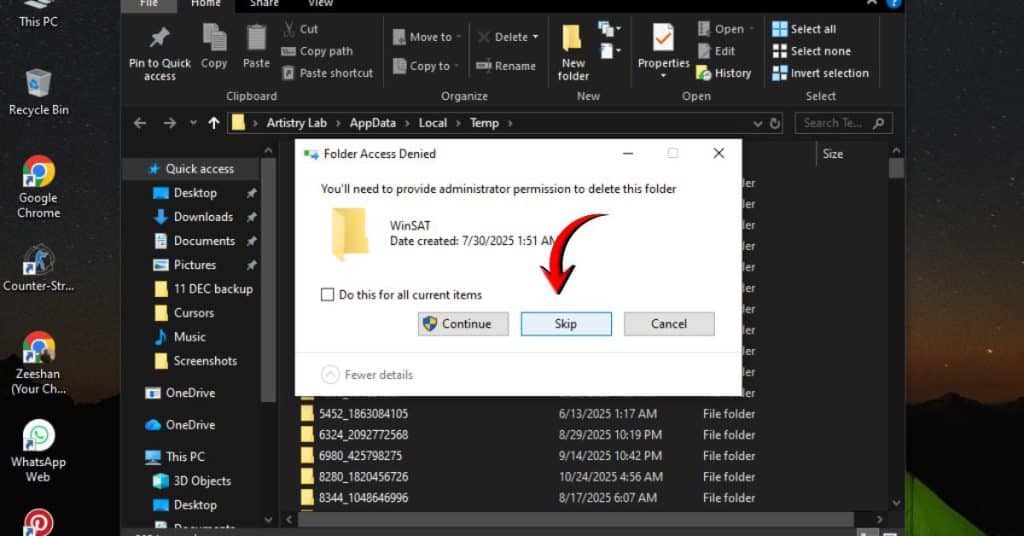
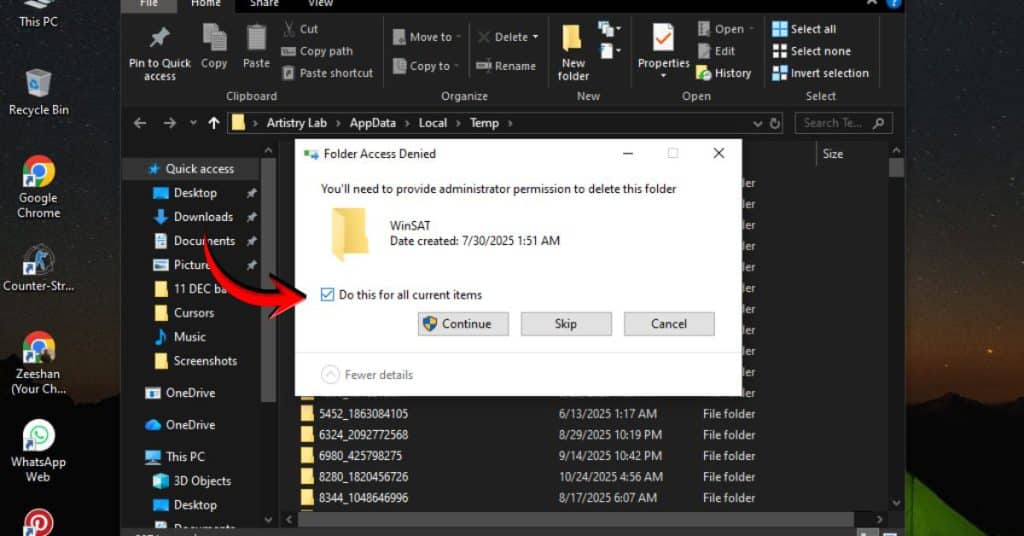
5. If Windows gives you a “File In Use” warning, simply click “Skip” or “Do this for all current items” and then “Skip.” This is usually because a program is currently running and using that specific temp file.
4. Pro-Tip: Schedule Cleaning with Storage Sense
Want to know the real secret to consistently fast performance? Automation! Windows has a built-in feature called Storage Sense that automatically clears junk for you.
1. Go back to Settings > System > Storage.
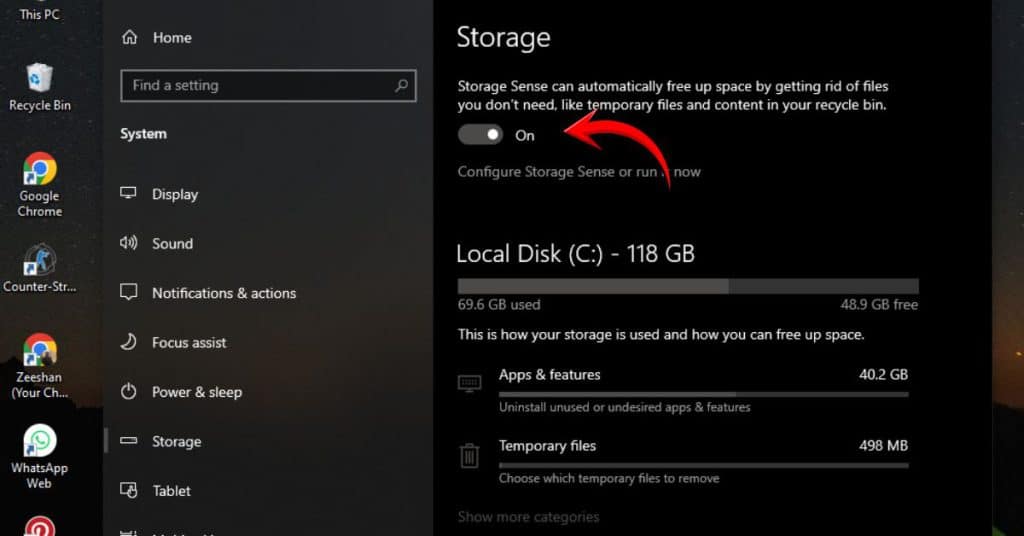
2. Under Storage, flip the switch for Storage Sense to On.
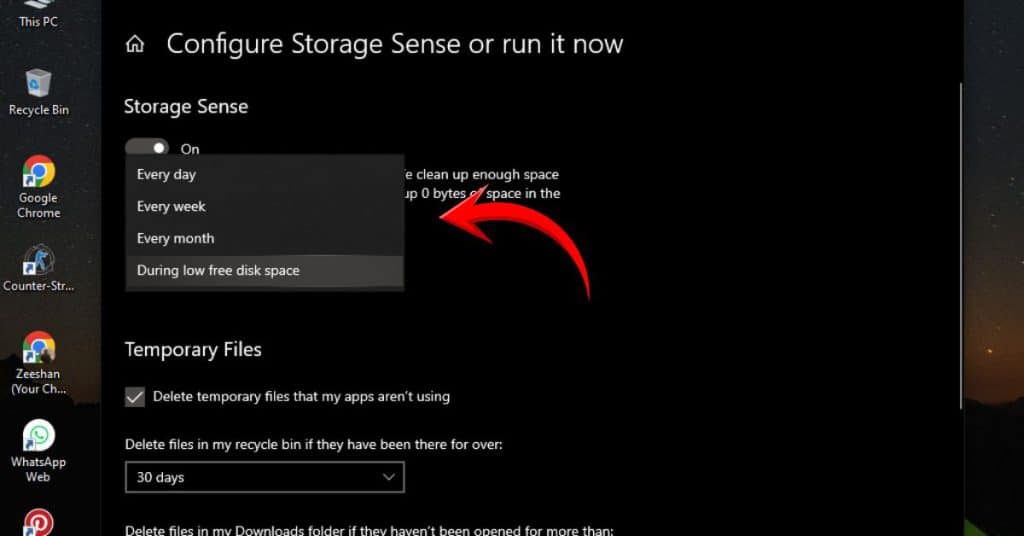
3. Click “Configure Storage Sense or run it now.”
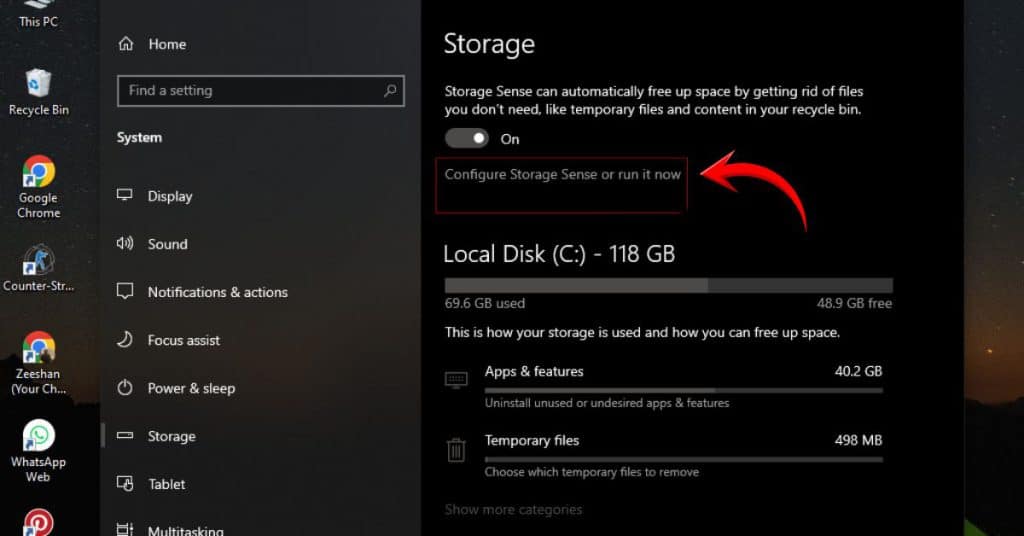
4. Here, you can set it to run daily, weekly, or monthly and control exactly what it deletes. This ensures your PC stays clean without you having to lift a finger!
Why Temp Files Slow Down Your PC (The Core Problem)
Temporary files, or “temp files,” are like the trash that builds up on your desk after a long day of work. They build up from:
- Software Installations: Leftover files from updates.
- Web Browsing: Cached images and data from every website you visit.
- Windows Updates: Old version files and logs.
Your computer has to go through all that junk before it can get to important system files, which makes everything feel slow.
One of the easiest ways to free up disk space and speed up Windows 10 is to delete these files.
To keep your Windows 10 computer running at its best, you need to clear out temporary files.
Conclusion:
That’s all there is to it! You now know how to keep your system running at its best and have the tools to do so.
You have successfully freed up valuable disk space and gotten rid of the junk that was slowing down your system by taking a few minutes to follow these simple steps.
Don’t forget that the best way to deal with these temporary files is to turn on Storage Sense. Now, enjoy the speed and performance boost that is easy to see on your Windows 10 PC.
Final Words From Me
I hope this article has helped you understand the 5 fastest methods, and if you gain knowledge from this article, be sure to tell us in the comments.
Because this is my hard work, and my focus is to provide good content to my audience and not just good content but also to give you knowledge and solve your problem with this content, so if you want to give your opinion in the comment, I will be very happy if my article helps my users. Thank you very much!
Frequently Asked Questions
1. How to clear cache and temp files in Chrome?
The easiest way is to use Chrome’s built-in tool:
Open Chrome Settings (three-dots menu).
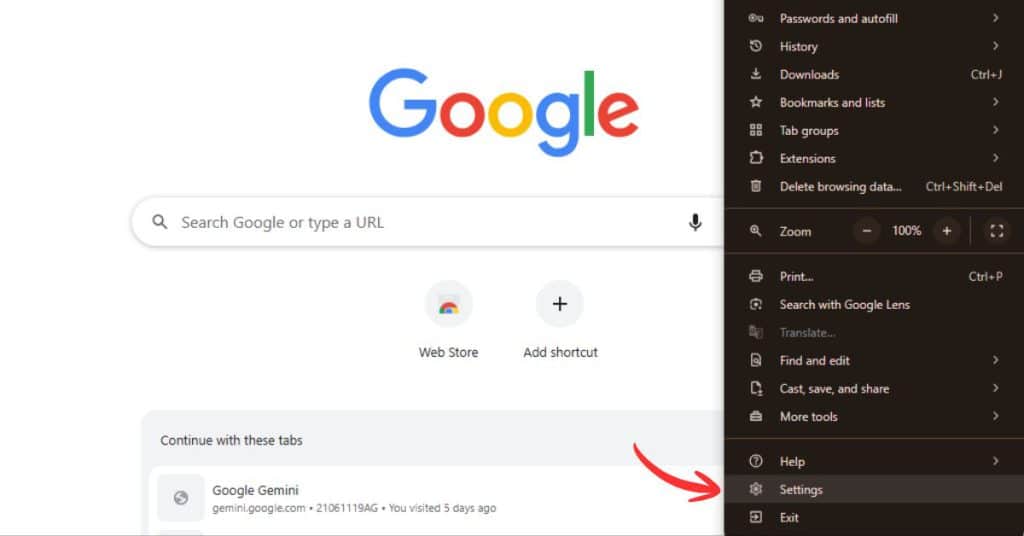
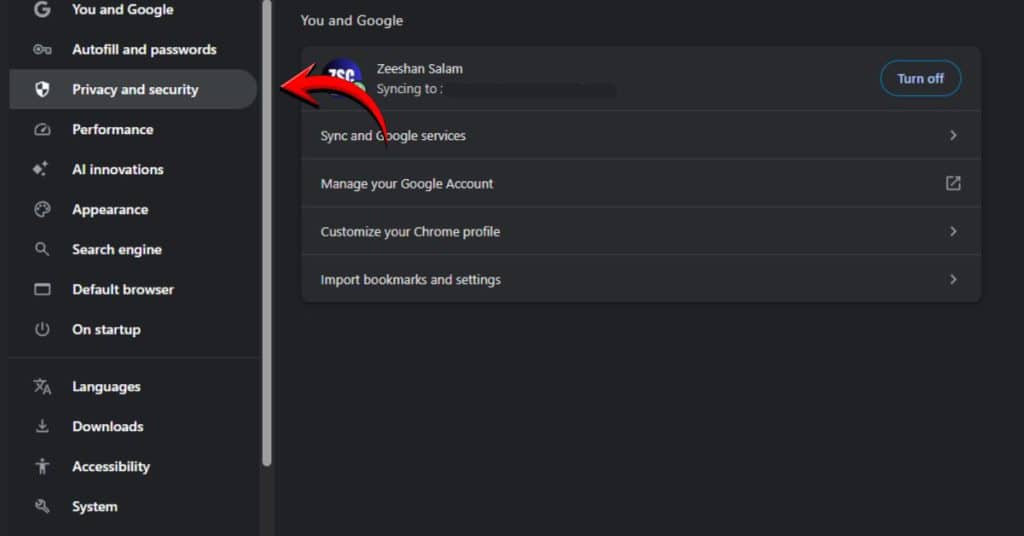
Go to Privacy and security, then click Clear browsing data.
Set the time range to ‘All time.’
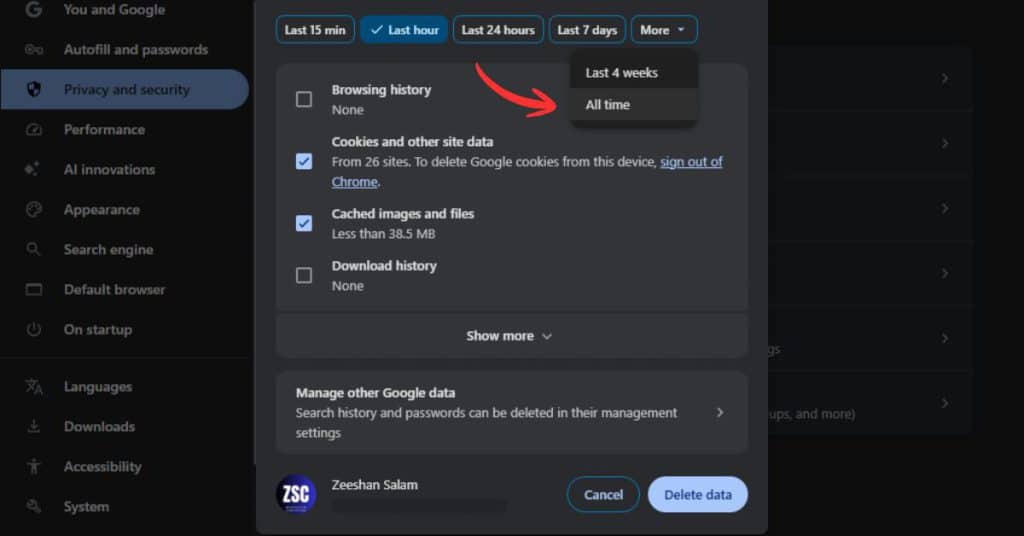
Check the boxes for Cached images and files and Cookies and other site data.
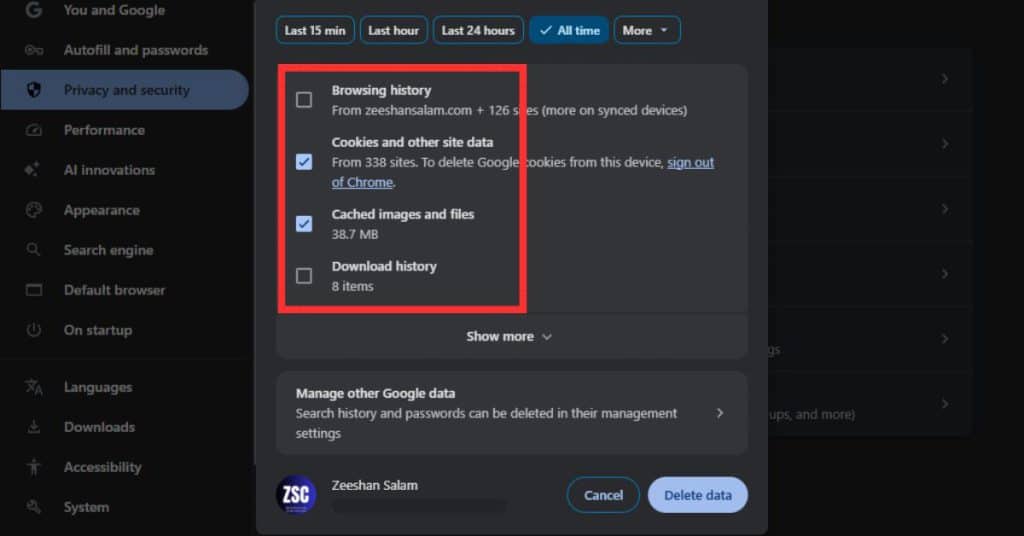
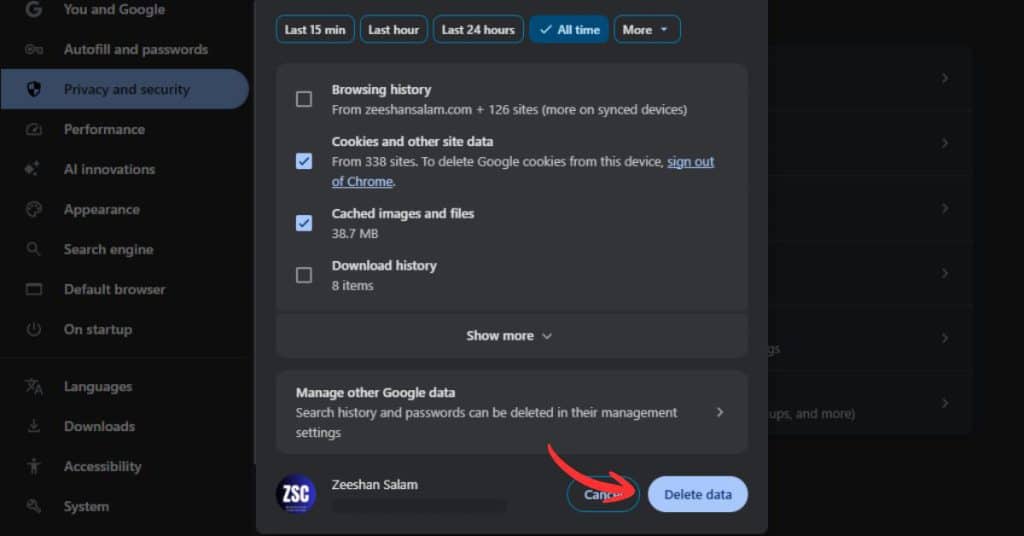
Click Delete data.
2. How to clear cache and junk files in PC?
You can clear cache and junk files in your PC using two primary methods:
- Windows Settings: Go to Settings > System > Storage > Temporary files and select the junk items to remove.
- Disk Cleanup: Search for and open the Disk Cleanup app, then select your drive and click Clean up system files for a deep clean.
3. Is it safe to delete all cached files?
Yes, it is completely safe. Cached files (like temporary files and browser cache) are only there to speed up your future access to data. Deleting them will not harm your system or your personal files. The worst that happens is a website takes an extra second to load the next time you visit it.
4. How do I clear the cache files?
Clearing cache files involves addressing different areas of your system where temporary data is stored:
- System Cache: The most effective way is using the Disk Cleanup utility. Ensure you click on ‘Clean up system files’ and select options like ‘DirectX Shader Cache’ and ‘Delivery Optimization Files’ to remove deep system-level cache.
- Browser Cache: If you use Chrome, Edge, or Firefox, press Ctrl + Shift + Delete on your keyboard. Select ‘Cached images and files’ and click ‘Clear data’ to remove stored web elements that might be slowing down your browsing experience.
- Windows Store Cache: If your apps are lagging, you can reset the Microsoft Store cache by typing wsreset.exe in the Windows Search bar and pressing Enter. A blank Command Prompt window will appear for a few seconds and then close automatically once the cache is cleared.

Hello, my name is Zeeshan Salam. I've been an entrepreneur and an expert in on-page SEO for more than three years, and I've helped people find digital content more easily in search engines.
I want to help you navigate and succeed in the digital world by posting high-quality Tech News, in-depth How-To Guides, and helpful Problem-Solving content here.
The main thing I want to do is make hard technical topics easy to understand and useful for everyone.
Great information which is very helpful for me. Especially method 1 and method 4 are very helpful. Keep it up.
Thanks for the feedback, Behroz! I’m really glad to hear that Method 1 and Method 4 helped you clear temp files in Windows 10 efficiently. Improving PC performance is the main goal of these guides. If you have any more questions about Windows optimization, feel free to ask. Keep visiting for more tech tips!